Custom Code Snippets in Visual Studio.
Today i'm going to share a very useful feature of visual studio. Code snippet is a great inbuilt feature of visual studio and we are already familiar with code snippets. We are using them in our daily programming life.
Some inbuilt code snippets for C#:-
- Prop:- to create a property
- Ctor:- to create a class constructor.
- foreach:- to create a foreach loop
- so on....
Do you know we can create our own code snippet like above snippets.
Create custom code snippets in visual studio
We will create a custom code snippet for ASP.NET MVC action method with try catch block.
And will name it as actionMethod.
When we use this actionMethod snippet, It should insert a code as below.
public ActionResult
ActionMethodName()
{
try
{
//Do some work
}
catch (Exception ex)
{
throw;
}
return View();
}
Step 1: Create a new project in visual studio and select asp.net application and name it as CustomCodeSnippets, click ok, then select empty project.
because we just need to create a xml file with .snippet file extenstion.
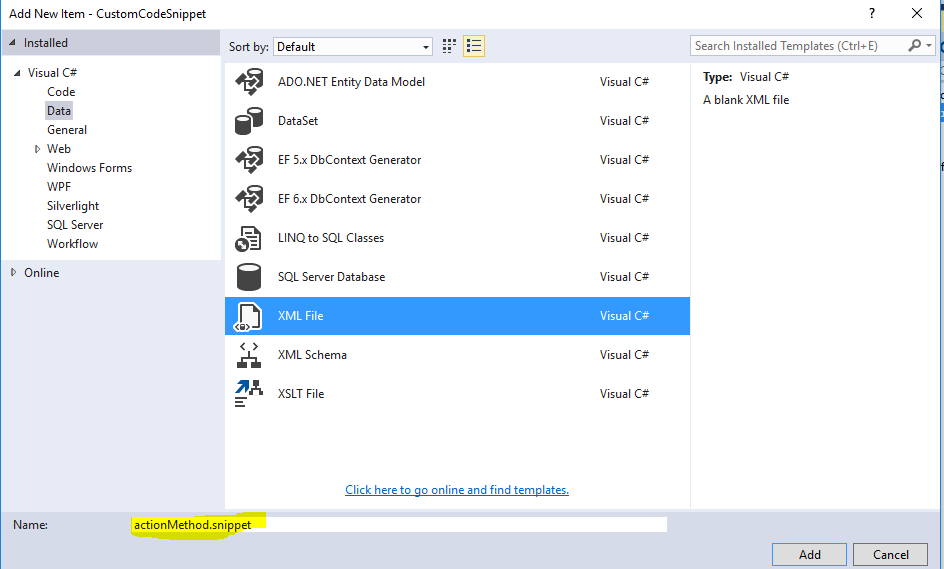
Step 2: After that add a new xml file and name it as actionMethod.snippet
Note: .snippet extension is mandatory to create a snippet file.
After adding this actionMethod.snippet xml file you will see the file as below.
<?xml version="1.0" encoding="utf-8" ?>
Now right click in recently added file and click on Insert Snippet option.
After that it will show snippet options. In that click on Snippet option.
It will insert a code to create our own code snippets as below.
<?xml version="1.0" encoding="utf-8" ?>
<CodeSnippet Format="1.0.0" xmlns="http://schemas.microsoft.com/VisualStudio/2005/CodeSnippet">
<Header>
<Title>title</Title>
<Author>author</Author>
<Shortcut>shortcut</Shortcut>
<Description>description</Description>
<SnippetTypes>
<SnippetType>SurroundsWith</SnippetType>
<SnippetType>Expansion</SnippetType>
</SnippetTypes>
</Header>
<Snippet>
<Declarations>
<Literal>
<ID>name</ID>
<Default>value</Default>
</Literal>
</Declarations>
<Code
Language="XML">
<![CDATA[<test>
<name>$name$</name>
$selected$ $end$</test>]]>
</Code>
</Snippet>
</CodeSnippet>
So in the above code you can understand it by their tag name. They are self described like Title, Author, Shortcut, Description etc.
In the Code tag we will insert our code.
So now modify the above code as below.
<?xml version="1.0" encoding="utf-8" ?>
<CodeSnippet Format="1.0.0" xmlns="http://schemas.microsoft.com/VisualStudio/2005/CodeSnippet">
<Header>
<Title>Action Method Code Snippet</Title>
<Author>HelpForDeveloper</Author>
<Shortcut>actionmethod</Shortcut>
<Description>Inserts a code snippets for
ASP.NET MVC Action Method</Description>
<SnippetTypes>
<SnippetType>Expansion</SnippetType>
</SnippetTypes>
</Header>
<Snippet>
<Declarations>
<Literal>
<ID>ActionMethodName</ID>
<Default>ActionMethodName</Default>
</Literal>
</Declarations>
<Code
Language="CSharp">
<![CDATA[
public ActionResult $ActionMethodName$()
{
try
{
//Do some work
}
catch (Exception ex)
{
throw;
}
return View();
}
]]>
</Code>
</Snippet>
</CodeSnippet>
Here we mentioned "actionMethod" as our shortcut.
Step 3: Importing actionMethod.snippet file to Code Snippet Manager to make it available globally.
Go to Tools->Code Snippet Manager
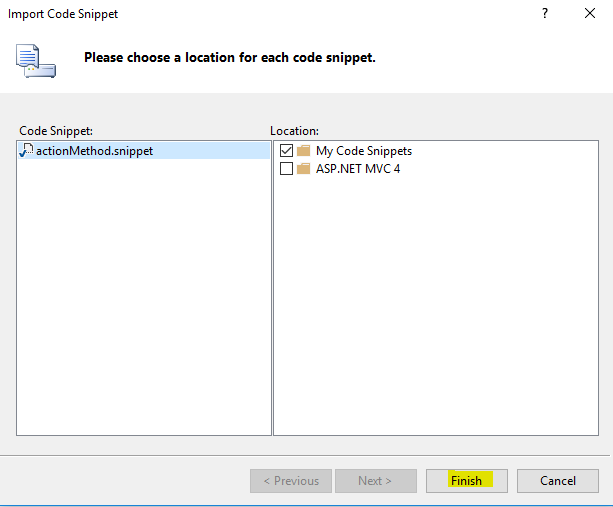
Click on Import and Locate that file, Once you locate that click Ok.
Then do as below.
Now click on finish and your custom code snippet will be copied at this location. "C:\Users\sushil\Documents\Visual Studio 2015\Code Snippets\Visual C#\My Code Snippets"
Our code snippet is ready to use.
To use that create a new ASP.NET MVC project and in the controller file type our code snippet shortcut as "actionmethod"
Visual Studio Intelligence is giving suggestion for our own code snippet. Now click the tab twice and your ready made action method with try catch block shall be inserted as below.
public ActionResult ActionMethodName()
{
try
{
//Do some work
}
catch (Exception ex)
{
throw;
}
return View();
}
Summary:-
We have seen how to create our own code snippet and how to use them. You can customize it based on your requirement.
Tips: While developing a web application if you notice that you are writing a particular code block again and again then it the right choice for your new custom code snippet.
Users also read these articles:
Thanks for reading.
If you have any doubt please put your comments in the comment section.